
How to Add Multiple Sources to NotebookLM (Gemini Notebook) at Once
Published · Extino Team
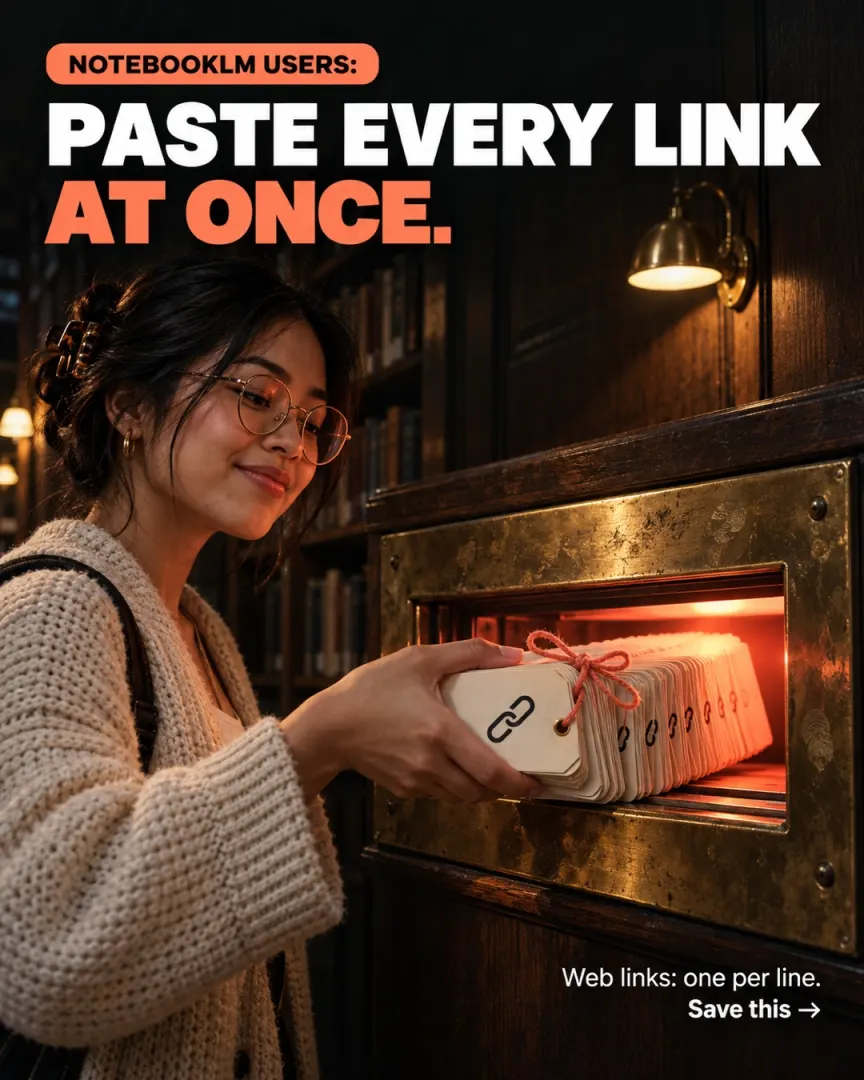
Short answer: You can add several website sources to NotebookLM at once by pasting all the links into the website box, separated by a space or a new line. Google's help page says so directly. YouTube playlists, RSS feeds, links scattered across a page, and chats from ChatGPT, Claude, Grok or DeepSeek can't be pasted in that way, so for those you either add them one by one or use a Chrome extension such as AnyNoteLM, which imports them in bulk into the notebook you choose. Whatever you use, a notebook on the free plan holds up to 50 sources, and each source can be up to 500,000 words. Paid Google AI plans raise the source limit.
Note: Google renamed NotebookLM to Gemini Notebook on 16 July 2026. It's the same product, so everything below applies to both names.
Last checked against Gemini Notebook Help: 30 September 2026.
NotebookLM source limits (2026)
These come from Google's own help pages. They decide how you should plan a big notebook.
| Limit | What it means in practice |
|---|---|
| 50 sources per notebook (free plan) | Source 51 won't go in. Paid Google AI plans get higher limits. |
| Up to 600 sources | The highest figure Google gives for notebooks, "based on your Google AI Plan" (Gemini Apps Help) |
| 500,000 words per source | One source can be huge, so merging small notes into one document saves slots |
| 200MB per uploaded file | Applies to local uploads |
| YouTube: public videos with captions only | Only the transcript is imported, not the video itself |
| Very new YouTube uploads | "Videos uploaded less than 72 hours prior may not be available to import" |
| Websites: text only | "Only the text content of the given HTML webpage is scraped." Images, embedded videos and linked pages aren't imported |
| Usage limits by plan | Google says Plus gets 2×, Pro 4×, and Ultra 5× or 20× the Pro limits, depending on subscription |
Is NotebookLM now called Gemini Notebook?
Yes. Google announced the rename on 16 July 2026 and described it as "the same standalone product, now doing more across the Google ecosystem." Your existing notebooks and sources carry over. Many people, and many extensions, still call it NotebookLM.
Method 1: Paste many web links at once (built in, free)
This is the step most people miss.
- Collect your links in a note or a document, one per line.
- Open your notebook and choose to add a source.
- Pick the website option.
- Paste the whole list, with the links separated by new lines (or spaces).
- Add them. Each link becomes its own source.
- Good for: a list of articles, blog posts or documentation pages.
- Limits: it's for web pages. Google's tip mentions web URLs only, so don't count on it for YouTube links. Each link still uses one of your 50 slots on the free plan.
Method 2: Merge small material into one source (built in, free)
Because each source can hold 500,000 words, you can fit a lot into one slot.
- Paste short notes, quotes, chat answers or transcripts into one Google Doc, grouped by topic.
- Add that document as one source.
- Keep adding to it later instead of adding new sources.
- Good for: staying under the 50-source cap.
- Limits: everything you paste in is copy-paste work, and formatting from AI chats often gets lost on the way.
Method 3: Let Gemini find sources for you (built in)
Gemini Notebook can search the web or your Google Drive for relevant sources (Fast Research) or browse many websites for you (Deep Research).
- Good for: starting a topic from scratch.
- Limits: it finds sources for you. It doesn't import the exact playlist, feed or chat you already have.
Method 4: Use a bulk-import Chrome extension (AnyNoteLM)
AnyNoteLM is a Chrome extension from Extino that adds a Send to NotebookLM button to YouTube, ChatGPT, Claude, Gemini, Grok, DeepSeek and Reddit, so a video transcript or a whole AI conversation goes into your notebook in one click, without copy-paste. It also imports whole YouTube playlists, pasted lists of URLs, RSS feeds and links pulled off any page in bulk, into the notebook you choose, and lets you browse, search, create, delete and tag notebooks.
- Good for: researchers, students, consultants and creators who pull from YouTube, AI chats and feeds every week.
- Downsides, honestly: it works inside Google's limits, so the 50-source cap, the captions rule for YouTube and the text-only rule for websites all still apply. It's a paid extension (from £1.99 a month on extino.net). It depends on NotebookLM's web app, so a big Google redesign could break it until it's updated. And it isn't the only importer: several other NotebookLM extensions exist, some free, so compare before you choose.
Comparison
| Paste web links | Merge into one doc | Deep / Fast Research | AnyNoteLM | |
|---|---|---|---|---|
| Cost | Free | Free | Free (limits by plan) | Paid |
| Many web links at once | Yes | Manual | Finds its own | Yes (URL lists, links off a page) |
| Whole YouTube playlist | No | No | No | Yes |
| RSS feeds | No | No | No | Yes |
| ChatGPT / Claude / Grok / DeepSeek chats | No | Copy-paste | No | Yes, one click |
| Gemini chats | Built in as its own source type | Copy-paste | n/a | Yes |
| Saves source slots | No | Yes | No | No (same limits) |
| Tags for notebooks | No | No | No | Yes |
How to import a YouTube playlist with AnyNoteLM, step by step
- Install AnyNoteLM from the Chrome Web Store and pin it to your toolbar.
- Sign in to NotebookLM / Gemini Notebook in the same Chrome browser. You don't need an API key or a separate account.
- Open the playlist on YouTube.
- Choose the bulk import option in AnyNoteLM and pick the destination notebook.
- Start the import. Each video with public captions becomes its own source.
- Check the count. If the playlist is longer than your free plan's remaining slots, split it across notebooks, or merge older sources first.
For a single ChatGPT or Claude conversation, open it and press the Send to NotebookLM button.
Why a YouTube video won't import
Most failed YouTube imports come down to one of these, per Google's help page:
- The video is private or unlisted. Only public videos are supported.
- It has no captions. Auto-generated captions count; no captions at all means nothing to import.
- It's brand new. Videos uploaded in the last 72 hours may not be available yet.
- The notebook is full. Free notebooks stop at 50 sources.
What does a NotebookLM extension do with your data?
Ask this of any extension before you install it. Here's AnyNoteLM's answer, from its privacy policy:
- The content you choose to import is extracted in your browser and sent into your own NotebookLM account.
- Your notebook list and tags are read so you can pick a destination.
- Settings are kept in your browser's local storage, and uninstalling the extension or clearing Chrome's storage removes them.
- The only thing sent to Extino's servers is a license check, which sends your license key and not your notes, sources or browsing data.
Your imported sources then live in Google's product, under Google's own terms and privacy policy. AnyNoteLM is an independent tool and isn't affiliated with or endorsed by Google.
Frequently asked questions
Can you add multiple URLs to NotebookLM at once? Yes, for websites. Google's help page says to separate multiple web links with a space or a new line when you add them. Each link becomes its own source.
How many sources can a NotebookLM notebook have? Up to 50 sources on the free plan. Paid Google AI plans raise the limit, and Google says notebooks can hold up to 600 sources depending on your plan. Each source can contain up to 500,000 words.
How do I import a whole YouTube playlist into NotebookLM? NotebookLM doesn't import playlists natively. You can add each video's link separately, or use a Chrome extension such as AnyNoteLM, which imports a whole playlist in bulk into the notebook you choose.
Why won't my YouTube video import into NotebookLM? Only public YouTube videos with captions are supported, only the transcript is imported, and videos uploaded less than 72 hours ago may not be available yet. A full notebook also blocks new sources.
Is NotebookLM now Gemini Notebook? Yes. Google renamed NotebookLM to Gemini Notebook on 16 July 2026. It's the same product, and existing notebooks carry over.
Can I save a ChatGPT or Claude conversation to NotebookLM? You can copy and paste the text as a source. AnyNoteLM adds a Send to NotebookLM button on ChatGPT, Claude, Gemini, Grok, DeepSeek and Reddit that imports the conversation in one click.
Does AnyNoteLM get around the 50-source limit? No. It works inside NotebookLM's own limits. To fit more material, merge small sources into one document or upgrade your Google AI plan.
Does AnyNoteLM need an API key? No. It works in Chrome with your normal NotebookLM sign-in, with no API keys, no code and no separate account.
Start with the free trick. Paste your web links one per line and save yourself the clicking today. If your research lives in playlists, RSS feeds and AI chats, AnyNoteLM sends them to your notebook in bulk, so try it on your next project and see how it fits.
AnyNoteLM is made by Extino, a Chrome extension studio. NotebookLM, Gemini Notebook, Gemini and YouTube are trademarks of Google LLC. ChatGPT, Claude, Grok, DeepSeek and Reddit belong to their respective owners. Extino is not affiliated with any of them.