
How to Find Which Chrome Extensions Are Slowing Down Your Browser
Published · Extino Team
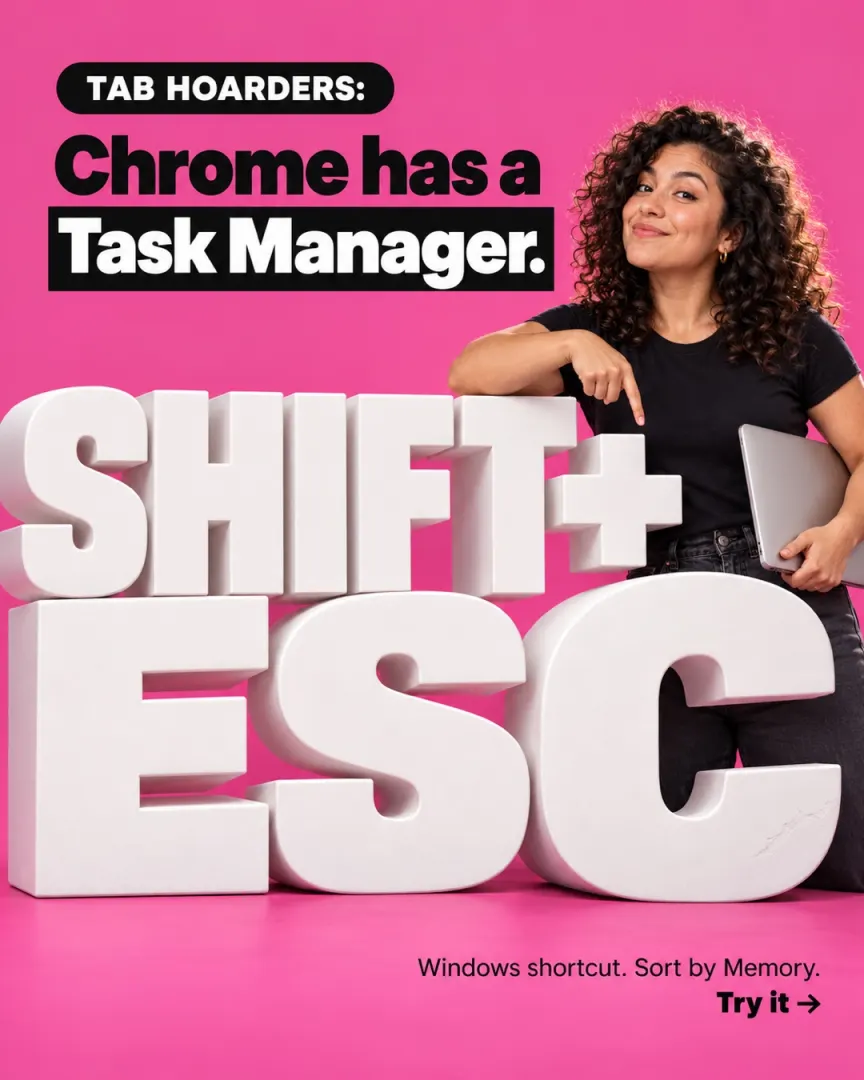
Short answer: Open Chrome's built-in Task Manager (press Shift + Esc on Windows or Linux, or go to the three-dot menu → More tools → Task manager on any computer), click the Memory column to sort it, and look for the extensions near the top. Then go to chrome://extensions and turn off or remove the ones you don't really use. Chrome's own help page says it directly: "If you're not using all your extensions, you can turn them off to speed up Chrome." If you still want the tools those extensions gave you, you can replace several single-purpose extensions with one all-in-one extension such as OneBuddy, and then check the Task Manager again to see the difference on your own computer.
Last checked against Chrome Help: 30 September 2026.
Why extensions slow Chrome down
Every extension you install is a small program running inside your browser. Chrome keeps each tab and each extension in its own process, and the Task Manager lists them one by one, which is why a browser with twelve "tiny" extensions can feel heavier than one with three.
The problem isn't one big extension. It's the pile. A Pomodoro timer, a notes app, a clipboard manager, an ad blocker, a screenshot tool and a habit tracker are six separate installs, six settings pages and six things running while you work. Most people installed them one at a time over months and never looked at the total.
Tabs matter too, of course. A single heavy web app tab can use more memory than several extensions together. That's exactly why it's worth measuring before you delete anything.
How to find the extensions slowing Chrome (step by step)
1. Open Chrome's Task Manager
- Windows and Linux: press Shift + Esc while Chrome is open.
- Any computer (including Mac): click the three-dot menu at the top right, then More tools, then Task manager.
It opens a small window listing everything Chrome is running: tabs, extensions, and Chrome's own processes.
2. Sort by memory
Click the Memory column header (Chrome may call it "Memory footprint") so the heaviest items sit at the top. Chrome's help page also suggests looking for items labelled "Background page".
3. Spot the extensions
Extensions show up in the list by name. Note any extension near the top of the list, especially ones you don't remember using this week. Leave the Task Manager open for a minute or two while you work normally, because usage changes as pages load.
4. Turn off or remove what you don't use
Type chrome://extensions in the address bar. For each extension you noted, either turn it off with its toggle (you can switch it back on later) or remove it. Chrome Help recommends exactly this: turn off the extensions you're not using.
5. Let Chrome rest your idle tabs
Go to Settings → Performance and turn on Memory Saver. According to Chrome Help, it deactivates tabs you aren't using, and they reload automatically when you click back to them. You can choose Moderate, Balanced or Maximum.
6. Measure again
Reopen the Task Manager and compare. This before-and-after check is the only honest way to know how much you saved, because every computer and every set of extensions is different.
Your three options, honestly compared
Once you know what's heavy, there are three ways to go.
Option 1: Keep your separate extensions, and prune them
Keep the specialist tools you love and remove the rest.
- Good for: people who rely on one or two best-in-class tools (a specific ad blocker or screen recorder, for example).
- Downsides: you still manage several installs, settings pages and, sometimes, several subscriptions.
Option 2: Use Chrome's built-in features only
Chrome already has a Task Manager, Memory Saver and tab groups, and your operating system has its own screenshot tool.
- Good for: anyone who wants zero extra installs.
- Downsides: no Pomodoro timer, clipboard history, habit tracker, break reminders or tracker blocker.
Option 3: Replace several extensions with one all-in-one extension
OneBuddy is a Chrome extension from Extino that puts 10+ productivity, privacy and wellness tools into one Chrome side panel: a Pomodoro timer with screen dimming, notes, clipboard history, a habit tracker, bookmarks, reminders (including a 20-20-20 eye-break reminder), Google Calendar integration, an ad and tracker blocker, privacy blur, a browser lock, and screen capture and recording.
- Good for: students, remote workers and freelancers who use several small tools every day and want them in one place.
- Downsides, honestly: an all-in-one tool won't beat every specialist at everything. If you depend on one advanced feature, keep that specialist. OneBuddy is also young (version 0.2.1 on the Chrome Web Store as of September 2026), and some tools are Pro-only. We don't publish a memory-saving figure because it depends on what you replace, so use the Task Manager test above.
Comparison
| Keep separate extensions | Chrome built-ins only | OneBuddy | |
|---|---|---|---|
| Number of installs | One per tool | None | One |
| Pomodoro timer | Separate extension | No | Yes |
| Notes + clipboard history | Separate extensions | No | Yes |
| Ad and tracker blocker | Separate extension | No | Yes (some blocking is Pro) |
| Eye-break / health reminders | Separate extension | No | Yes |
| Screen capture and recording | Separate extension | Use your OS tools | Yes (capture tools are Pro) |
| Where notes are stored | Varies by extension | n/a | Locally on your device, per the store listing |
| Cost | Varies, often several subscriptions | Free | Free plan forever; Pro is paid |
How to switch to OneBuddy, step by step
- Check your baseline. Open Chrome's Task Manager, sort by Memory, and screenshot it.
- Install OneBuddy from the Chrome Web Store and pin it to your toolbar.
- Open the side panel by clicking the OneBuddy icon.
- Turn on the tools you'll use: the Pomodoro timer, notes, clipboard history, reminders, the blocker.
- Turn off the extensions OneBuddy now covers at chrome://extensions. Don't delete them yet; give it a week.
- Check the Task Manager again after a normal day, and compare with your screenshot.
- Remove the old extensions once you're happy.
Is an all-in-one extension safe?
It's a fair question, especially for an extension with an ad blocker, which needs to read pages to work. Here's what OneBuddy's Chrome Web Store listing says:
- "Your notes, habits, and settings are stored locally on your device using Chrome's storage API. OneBuddy does not transmit your productivity data to external servers."
- Extino says recordings and screenshots stay in local storage on your own machine, and the browser lock uses SHA-256.
- The store's privacy label lists the kinds of data the extension handles: personally identifiable information, authentication information and website content. The developer declares it isn't sold or used for unrelated purposes.
Read the "Privacy practices" section on the store page before you install any extension, including ours. OneBuddy is an independent tool and isn't affiliated with or endorsed by Google.
Frequently asked questions
How do I see which extension is using the most memory in Chrome? Open Chrome's Task Manager (Shift + Esc on Windows or Linux, or the three-dot menu → More tools → Task manager) and click the Memory column to sort by memory use. Extensions are listed by name.
How do I open Chrome's Task Manager on a Mac? Click the three-dot menu at the top right of Chrome, then More tools, then Task manager.
Do Chrome extensions slow down your computer? They can. Each extension runs as its own process, and Chrome's help page says turning off extensions you don't use can speed Chrome up. How much depends on the extension.
How many Chrome extensions is too many? There's no fixed number. Sort the Task Manager by memory and judge by what each one costs versus how often you use it.
What is Chrome Memory Saver? A Chrome setting (Settings → Performance) that deactivates tabs you aren't using to free memory. They reload when you return to them.
What is OneBuddy? OneBuddy is a Chrome extension by Extino that puts 10+ productivity, privacy and wellness tools, including a Pomodoro timer, notes, clipboard history and an ad and tracker blocker, into one Chrome side panel. It has a free plan forever.
Does OneBuddy store my notes on its servers? According to its Chrome Web Store listing, notes, habits and settings are stored locally on your device using Chrome's storage, and OneBuddy doesn't transmit that productivity data to external servers.
Is OneBuddy free? Yes, there's a free plan forever. Some tools, such as focus, blocking and capture features, are part of the paid Pro plan.
Try the test first. Press Shift + Esc, see what's heavy, and prune what you don't use. If you'd rather keep your timer, notes and blocker in one place, OneBuddy on the Chrome Web Store has a free plan, so install it and compare the numbers on your own computer.
OneBuddy is made by Extino, a Chrome extension studio. Chrome is a trademark of Google LLC. Extino is not affiliated with Google.