
How to Remove Backgrounds From More Than 50 Images in Canva
Published · Extino Team
Short answer: Canva Pro can remove backgrounds from up to 50 uploaded images at once, but only when they're in a single folder of 50 or fewer, and only one folder at a time. For bigger batches you have three options: split your photos into folders of 50 and run each one, remove backgrounds one by one in the editor, or use a Chrome extension such as CanvaBulkBG, which runs Canva's own background remover on more than 50 images in one go and downloads the results automatically. Every option needs a paid Canva plan, and every option is subject to the same size limits: photos must be under 9MB, and anything over 10MP is downscaled to 10MP.
Last checked against Canva's Help Center: 30 September 2026.
What Canva's bulk background remover actually does
Canva's Background Remover is included with its paid plans (Canva Pro, Teams and similar). It isn't available on the free plan. There are two ways to use it on many photos at once, both from the Projects tab:
Remove backgrounds from a whole folder
- From the Canva homepage, go to Projects.
- Hover over the folder, then select More (…).
- Select Remove background.
Canva shows its progress as it works through each photo. When it's done, it creates a new folder called "[folder name] - Edited", and your original photos and folder stay unchanged.
Remove backgrounds from selected images in a folder
- Go to Projects and open a folder.
- Tick the images you want.
- Select BG Remover from the toolbar at the bottom of the screen.
The edited photos are added to the same folder.
Canva background remover limits (2026)
These come straight from Canva's Help Center, and they're the reason big batches get awkward:
| Limit | What it means in practice |
|---|---|
| Paid plans only | No Canva Pro, no background remover, in bulk or otherwise |
| Up to 50 images at a time | Folders with more than 50 images can't use it, and the option appears greyed out |
| One folder at a time | You can't queue several folders; each run has to finish first |
| Uploaded images only | Canva library photos and designs in the folder are skipped |
| Under 9MB per photo | Larger files won't process |
| 10MP maximum output | Any photo over 10 megapixels is downscaled to 10MP after its background is removed |
| AI usage limits apply | Canva applies usage limits to its AI tools on each plan |
| Clear subject needed | If Canva can't detect a clear subject, that photo shows "An error has occurred" and stays in the original folder |
Why is "Remove background" greyed out on my folder?
In almost every case, it's because the folder contains more than 50 images. Canva's fix is to move images out until the folder has 50 or fewer, or to pick a different folder. If you're on the free plan, the option won't be available at all.
Does Canva's background remover reduce image quality?
It can reduce resolution. Canva states that any uploaded photo over 10MP is downscaled to 10MP after background removal. For a 4:3 photo, 10MP is roughly 3,650 × 2,740 pixels, which is plenty for social posts and most marketplace listings but can be limiting for large print-on-demand files. If you need full resolution above 10MP, keep your original and cut that version out separately.
Will it get my post labelled as AI-generated?
Canva says Background Remover is treated as an editing tool rather than a content generator, so using it on its own shouldn't add Canva's AI-generated content metadata to your design.
Three ways to remove backgrounds from more than 50 images
Option 1: Split your photos into folders of 50 (free with Canva Pro)
Upload your shoot, then divide it into folders of 50 or fewer and run Remove background on each folder, one after another.
- Good for: occasional batches of 100–200 photos.
- Downsides: you have to wait for each folder to finish before starting the next, and you then have to download every "- Edited" folder yourself. A 400-photo shoot means 8 folders, 8 runs and 8 downloads, and it's easy to lose track of which folder is done (Folder_7_FINAL_v2, anyone?).
Option 2: Remove backgrounds one at a time in the editor
Open each photo, select BG Remover, and download.
- Good for: a handful of hero images where you want to touch up edges with the Erase and Restore brushes.
- Downsides: it doesn't scale at all past a few dozen photos.
Option 3: Use CanvaBulkBG to run past the 50-image limit
CanvaBulkBG is a Chrome extension from Extino that automates Canva's own background remover for large batches. It handles more than 50 images in a single run, downloads every finished image automatically along with a CSV of the file names, keeps working unattended, and doesn't delete anything from your Canva account.
- Good for: sellers, print-on-demand shops, VAs and agencies processing hundreds of product photos regularly.
- Downsides, honestly: it needs Canva Pro, because it uses Canva's remover. It's subject to the same 9MB and 10MP limits and to Canva's own usage limits, because it's the same engine. It only runs in Chrome (or Chromium browsers). It's a paid tool after a 24-hour free trial.
Comparison
| Split into folders | One at a time | CanvaBulkBG | |
|---|---|---|---|
| Needs Canva Pro | Yes | Yes | Yes |
| Images per run | 50 | 1 | More than 50 |
| Runs unattended | Partly (per folder) | No | Yes |
| Downloads results for you | No | No | Yes, plus a CSV of file names |
| Deletes your originals | No | No | No |
| Background removal engine | Canva | Canva | Canva |
| Extra cost | None | None | 24-hour free trial, then paid |
How to use CanvaBulkBG, step by step
- Install CanvaBulkBG from the Chrome Web Store and pin it to your toolbar.
- Log in to Canva with your Canva Pro account in the same Chrome browser.
- Upload your photos to Canva.
- Open the extension, choose the images or folder to process, and press start.
- Leave it running. It works through the batch using Canva's background remover.
- Collect your files. Finished images download automatically, together with a CSV listing the file names so you can match them to your SKUs or listings.
Your original photos stay in Canva, untouched.
Prep your photos so bulk removal works first time
A few minutes of prep saves re-runs:
- Keep every file under 9MB. A high-quality JPG is usually much smaller than a PNG of the same photo.
- Resize to about 10MP yourself if you don't need more, so you control the resizing and sharpening instead of Canva's automatic downscale.
- Shoot with a clear subject. Good contrast between the product and the background, and no busy patterns behind edges, helps Canva detect the subject. Photos without a clear subject are the ones that error out.
- Use uploaded photos, not Canva library images, which bulk removal skips.
- Name your files before uploading (for example
sku-1042-front.jpg). CanvaBulkBG's CSV of file names is far more useful when the names mean something.
After removal: making product photos marketplace-ready
Removing the background is step one. For Amazon's main image, sellers also need:
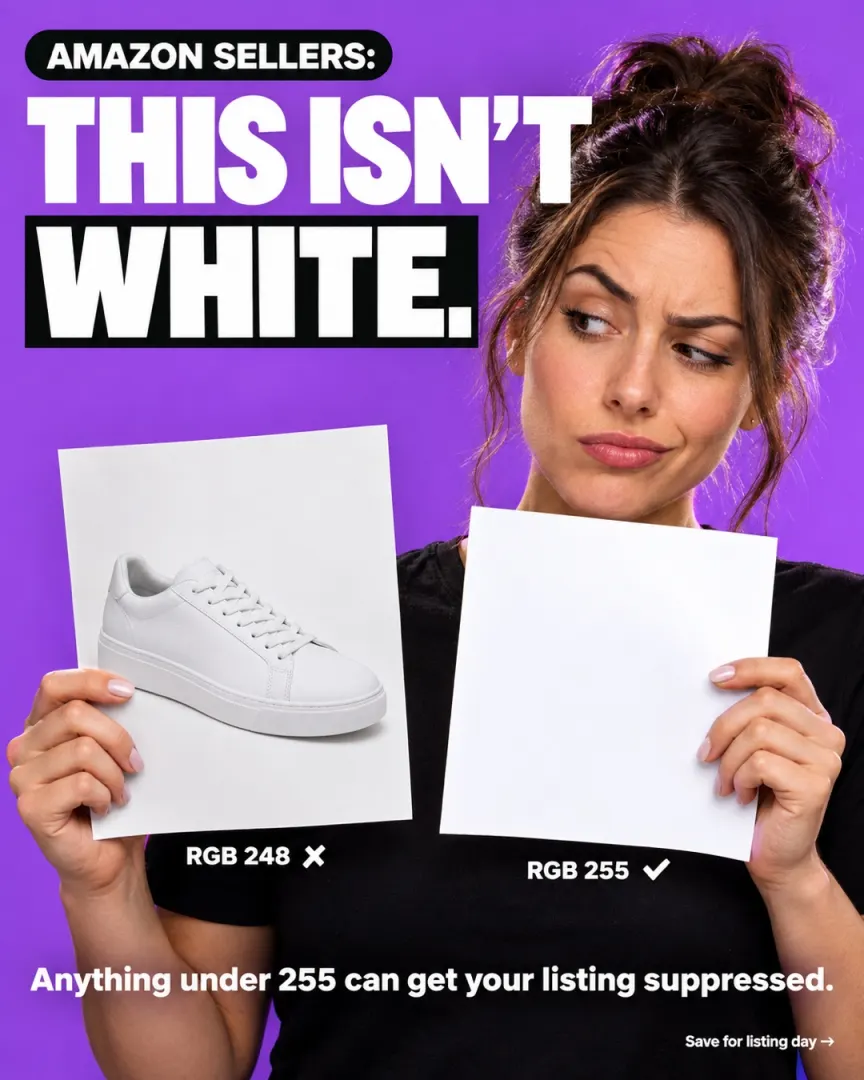
- A pure white background: RGB 255, 255, 255 (#FFFFFF). An off-white such as #F8F9FA looks white to the eye but is a common reason main images get flagged and listings get search suppressed. Place your cut-out on a true #FFFFFF canvas rather than brightening the original photo.
- The product filling about 85% of the frame.
- At least 1,000 pixels on the longest side, so shoppers can zoom.
- No text, logos, props or watermarks on the main image.
- If a fixed image still shows as suppressed, sellers on Amazon's forums suggest renaming the file before re-uploading, since an older cached version can linger.
Etsy, Shopify and other marketplaces are more flexible, but a consistent clean background across a catalogue still makes a shop look more professional. Check each platform's current photo guidelines before a big batch.
Is it safe to use a Chrome extension with Canva?
That's a fair question to ask about any extension. Here's what we can say about CanvaBulkBG specifically:
- It uses Canva's own background remover on your own Canva account. Your photos are processed by Canva, as they would be if you clicked the button yourself.
- It deletes nothing. Early versions removed images from the Canva folder after downloading. Users told us they didn't want that, and the current version leaves your folders exactly as they were.
- Its reviews are public on the Chrome Web Store, where developers can't edit or remove them.
As with any automation, check that your use fits Canva's terms of use. CanvaBulkBG is an independent tool and isn't affiliated with or endorsed by Canva.
Frequently asked questions
Can Canva remove backgrounds from multiple images at once? Yes. With a paid plan, Canva can remove backgrounds from up to 50 uploaded images in one folder at a time, from the Projects tab.
How do I remove backgrounds from more than 50 images in Canva? Split the images into folders of 50 or fewer and run each folder, or use a Chrome extension like CanvaBulkBG, which runs Canva's background remover on more than 50 images in one run and downloads the results automatically.
Why is Canva's Remove background option greyed out? The folder almost certainly has more than 50 images. Canva's bulk background remover only works on folders of 50 or fewer. It also needs a paid Canva plan.
Is Canva's background remover free? No. Background Remover is included with Canva's paid plans, such as Canva Pro, and isn't available on the free plan.
Does Canva's background remover lower image resolution? Photos over 10MP are downscaled to 10MP after background removal, and files over 9MB aren't supported. Photos under 10MP keep their size.
Does CanvaBulkBG work without Canva Pro? No. CanvaBulkBG automates Canva's own background remover, which needs a paid Canva plan.
Does CanvaBulkBG delete my Canva images? No. The current version doesn't delete anything from your Canva account. It downloads the finished images and leaves your folders as they were.
What background colour does Amazon require for main images? Pure white, RGB 255, 255, 255 (#FFFFFF). Off-white backgrounds can cause the main image to be flagged and the listing to be suppressed from search.
Try it on your next batch. If your catalogue is bigger than 50 photos, CanvaBulkBG on the Chrome Web Store has a 24-hour free trial, so run it on your own photos and see how it fits your workflow. And if your batches are under 50, Canva's built-in folder option above is all you need.
CanvaBulkBG is made by Extino, which builds Chrome extensions for people who sell and create online. Canva is a trademark of Canva Pty Ltd. Extino is not affiliated with Canva.